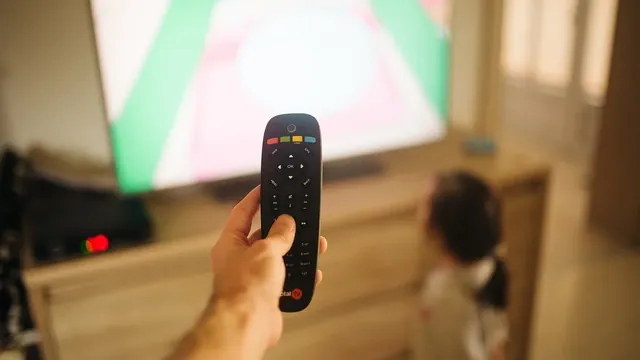
Krira TV on Firestick & Fire TV: Setup Guide
Set up Krira TV on Amazon Firestick and Fire TV devices with preparation steps, sideloading guidance, remote navigation tips, and storage advice.
Resources
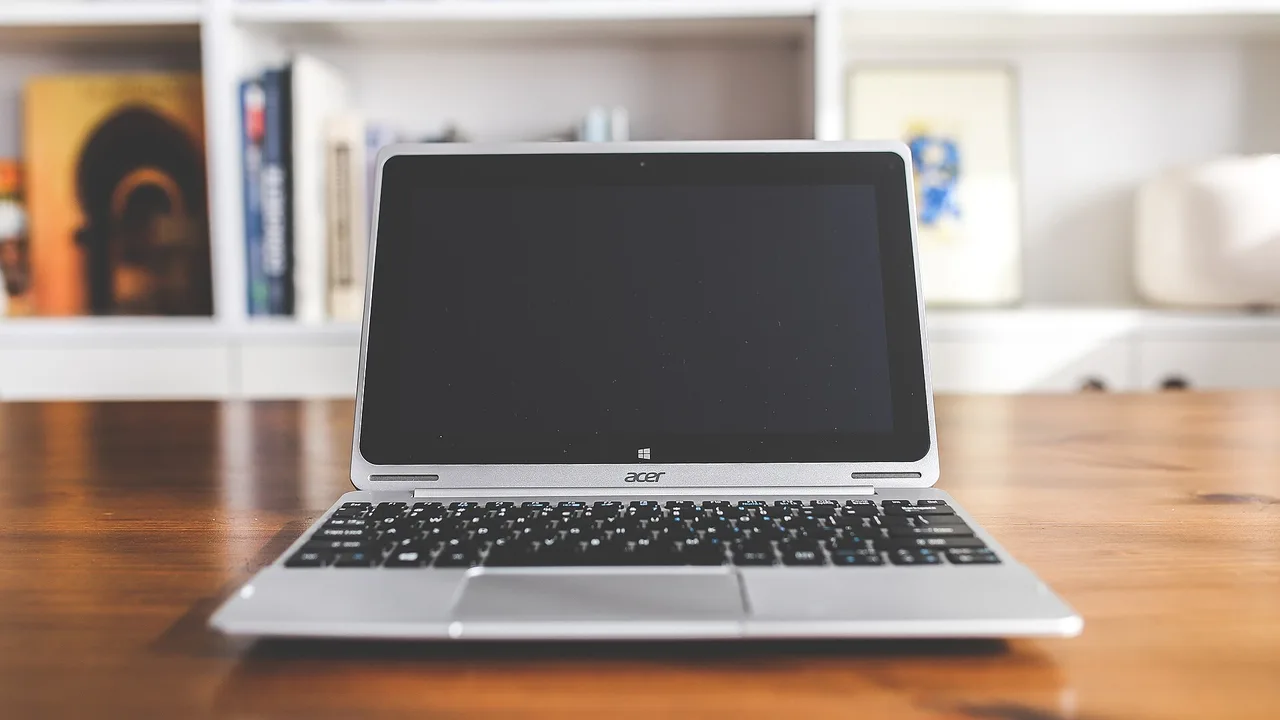
Learn how to watch Krira TV on a PC or Windows laptop using an Android emulator, including setup steps, controls, display tips, and performance advice.
Many Krira TV users start on a phone but later want the bigger screen, better speakers, and comfortable keyboard controls of a computer. Watching a full football match or a long cricket innings on a laptop simply feels different, and it also frees the phone for messages and calls while the match plays. You can find the current download on the Krira TV APK page.
Krira TV is built for Android, so a Windows PC cannot install the APK file directly. The standard solution is an Android emulator, a program that creates a virtual Android device inside Windows where the app can be installed and used almost exactly as it works on a phone.
This guide explains how PC viewing works, what your computer needs, how the setup process flows, and how to tune the emulator so streams stay smooth for a whole match.
If the app is not on your phone yet, begin with: How to Download and Install Krira TV APK before following the PC steps below.
A larger display is the main reason viewers move to a computer. Fixtures, score graphics, and channel menus are easier to read, and group viewing becomes practical when friends or family gather around one screen.
A PC also offers stable wired internet in many homes. An Ethernet connection usually fluctuates less than Wi-Fi, which helps during busy evening matches when the home network is under load.
Most modern Windows laptops and desktops can run an Android emulator comfortably. A recent multi-core processor, at least 8 GB of RAM, and a few gigabytes of free storage give the smoothest result, although lighter emulators also work on modest machines.
Virtualization support in the processor, usually called VT-x or AMD-V, makes a major difference. It is enabled in the computer BIOS or UEFI settings on most newer systems, and emulator software usually tells you if it is switched off.
Several well-known Android emulators run on Windows, and most Krira TV users simply need one that is stable, updated, and compatible with their Windows version. Install the emulator only from its official website so the installer is clean and current.
After installation, sign in with a Google account inside the emulator, just as you would on a new Android phone. This unlocks normal app behaviour and keeps the virtual device easy to manage.
Once the emulator desktop appears, the Krira TV APK can be installed in the same spirit as a sideloaded phone install. Most emulators offer an install-APK button or accept a simple drag and drop of the file onto the emulator window.
When the icon appears on the virtual home screen, open the app and allow a few moments for the first load. The interface responds to mouse clicks exactly where a finger would tap on a phone.
PC speakers or headphones carry the match audio through the emulator automatically in most setups. Check the Windows volume mixer if the app is silent, because the emulator has its own volume slider there.
Full-screen mode, usually toggled with F11 or the emulator toolbar, hides the Windows desktop and turns the computer into a match screen. Remember to disable notifications if pop-ups interrupt important moments.
Allocate enough resources to the emulator. Settings panels in most emulators let you assign CPU cores and RAM; giving the virtual device half of the computer's cores and around 4 GB of RAM is a sensible starting point.
Close heavy programs while streaming. Browser tabs, game launchers, and cloud backups compete for the same connection and processor time that the emulator needs. Our broader advice in the Krira TV buffering fix guide applies on PC as well.
A phone wins on portability and touch simplicity, while a PC wins on screen size, wired networking, and long-session comfort. Many fans use both: the phone for quick score checks and highlights, the computer for full matches at home.
Battery is never a concern on a plugged-in laptop, which matters during tournaments with several matches in one day.
A black screen inside the emulator usually points to graphics driver issues. Updating the GPU driver and switching the emulator rendering mode between OpenGL and DirectX resolves most cases.
If the emulator itself feels slow, confirm virtualization is enabled and that no second emulator or virtual machine is running at the same time. Antivirus real-time scanning of the emulator folder can also add lag on older machines.
Download both the emulator and the APK from trusted sources only, keep Windows updated, and let your antivirus scan downloaded files before installing them.
The safety principles explained in our Krira TV safety and security guide apply equally on a computer.
Conclusion
Watching Krira TV on a Windows PC is mostly a one-time setup task: install a reputable emulator, add the app, tune the display and resources once, and every later match is only a double-click away.
For tournament days at home, the PC setup is hard to beat, a big picture, steady wired internet, and a phone that stays free for everything else.
Download Krira TV APKSet up Krira TV on Amazon Firestick and Fire TV devices with preparation steps, sideloading guidance, remote navigation tips, and storage advice.
Understand how much mobile data Krira TV streaming uses per match and per hour, what affects consumption, and practical ways to watch more while using less.
Learn how Krira TV streaming quality works, how resolution and adaptive playback affect smoothness, and how to choose the right setting for your connection.