Krira TV on PC & Windows: Complete Setup Guide
Learn how to watch Krira TV on a PC or Windows laptop using an Android emulator, including setup steps, controls, display tips, and performance advice.
Resources
Set up Krira TV on Amazon Firestick and Fire TV devices with preparation steps, sideloading guidance, remote navigation tips, and storage advice.
The Firestick turned ordinary televisions into streaming screens in millions of homes, and sports fans naturally ask whether Krira TV can join the apps on their Fire TV home screen. Because Fire TV runs a version of Android, sideloading an Android app is a familiar process for many Firestick owners. You can find the current download on the Krira TV APK download page.
This guide walks through the preparation, the general installation flow, and the everyday viewing tips that make Krira TV comfortable to use with a small remote instead of a touchscreen.
The advice also applies to Fire TV Cube and Fire TV Edition televisions, which share the same system. For ordinary Android TV sets, see our dedicated guide instead: Krira TV for Android TV and Smart TV
A Firestick is inexpensive, portable between rooms and houses, and powerful enough for live streams. Fans who travel for work often carry one so their viewing setup follows them to any television with an HDMI port.
Fire TV also centralizes everything. Instead of switching inputs and devices, the match sits on the same home screen as the household's other entertainment.
Prepare three things: a stable Wi-Fi connection, enough free storage on the stick, and the Krira TV APK file source you trust. Firestick models have limited internal storage, so removing unused apps beforehand prevents failed installations.
In Fire TV settings, sideloading requires enabling the option that allows apps from unknown sources for the downloader tool you use. Only enable it for the specific app doing the installation, and review the setting afterwards.
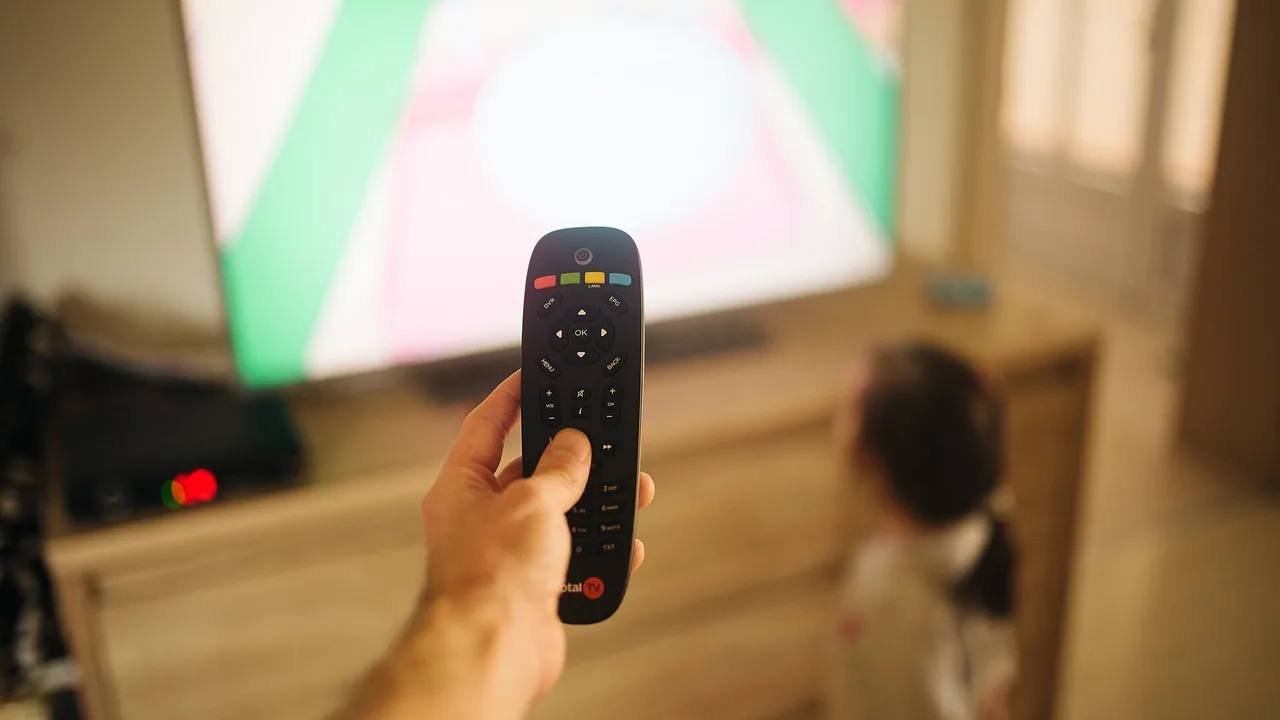
Most owners use a downloader utility: enter the file address, download the APK, and confirm the installation prompts with the remote. The process mirrors installing on a phone, only slower and entirely remote-driven.
After installation, the Krira TV icon appears in the apps row. Moving it to the front of the home screen saves time on match days. A first launch can take a little longer while the app prepares its data.
Set the Firestick display resolution to automatic so it matches your television. Forcing a higher resolution than the TV supports can cause black screens or cropped edges.
Sound normally passes straight to the TV or soundbar. If commentary is out of sync, restart the stream first; persistent delay often comes from Bluetooth audio, which adds a small lag on many televisions.
Streaming apps accumulate cache over time. Clear the Krira TV cache from Fire TV application settings every few weeks, especially on the entry-level sticks with the least storage.
A nearly full Firestick slows down everywhere, not only inside one app. Keeping at least 500 MB free is a practical rule that prevents update failures and random restarts.
Place the Firestick where Wi-Fi reaches it well; a stick hidden behind a large TV in a cabinet corner receives a weaker signal than expected. The HDMI extender included with many sticks exists partly to improve that position.
Restart the Firestick before a major final. The quick reboot clears memory and pending updates so nothing competes with the match. Buffering principles from our main fix guide apply here too.
Sideloaded apps do not update through the Fire TV store, so updates are manual: download the newer APK and install it over the existing app, which preserves settings in the usual Android way.
Check occasionally whether a newer version exists, particularly before major tournaments. Our update guide explains safe version habits in detail.
If the app closes immediately, clear its cache, restart the stick, and confirm the installation file matched your device. A corrupted download is the most common cause and a fresh file usually fixes it.
When Wi-Fi drops only on the Firestick, test another device on the same network to separate a router problem from a stick problem before changing app settings.
Android TV and Google TV devices install apps through their own store and settings, while the Firestick centres on Amazon's interface and sideloading tools. The viewing experience inside Krira TV is similar once the app is running.
Choose whichever device your household already owns; the stream quality depends far more on internet stability than on which stick or box delivers it.
Conclusion
A Firestick gives Krira TV the biggest screen in the house for the price of a takeaway meal, and the setup is a single careful afternoon task rather than a recurring chore.
Prepare the storage, sideload carefully from a source you trust, restart before big matches, and the little stick quietly handles the rest of the season.
Download Krira TV APKLearn how to watch Krira TV on a PC or Windows laptop using an Android emulator, including setup steps, controls, display tips, and performance advice.
Understand how much mobile data Krira TV streaming uses per match and per hour, what affects consumption, and practical ways to watch more while using less.
Learn how Krira TV streaming quality works, how resolution and adaptive playback affect smoothness, and how to choose the right setting for your connection.