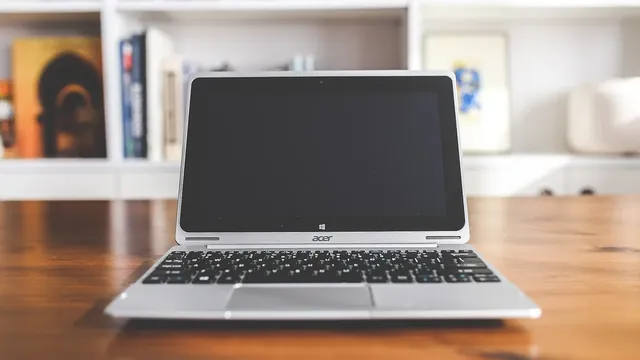
Krira TV on PC & Windows: Complete Setup Guide
Learn how to watch Krira TV on a PC or Windows laptop using an Android emulator, including setup steps, controls, display tips, and performance advice.

Resources
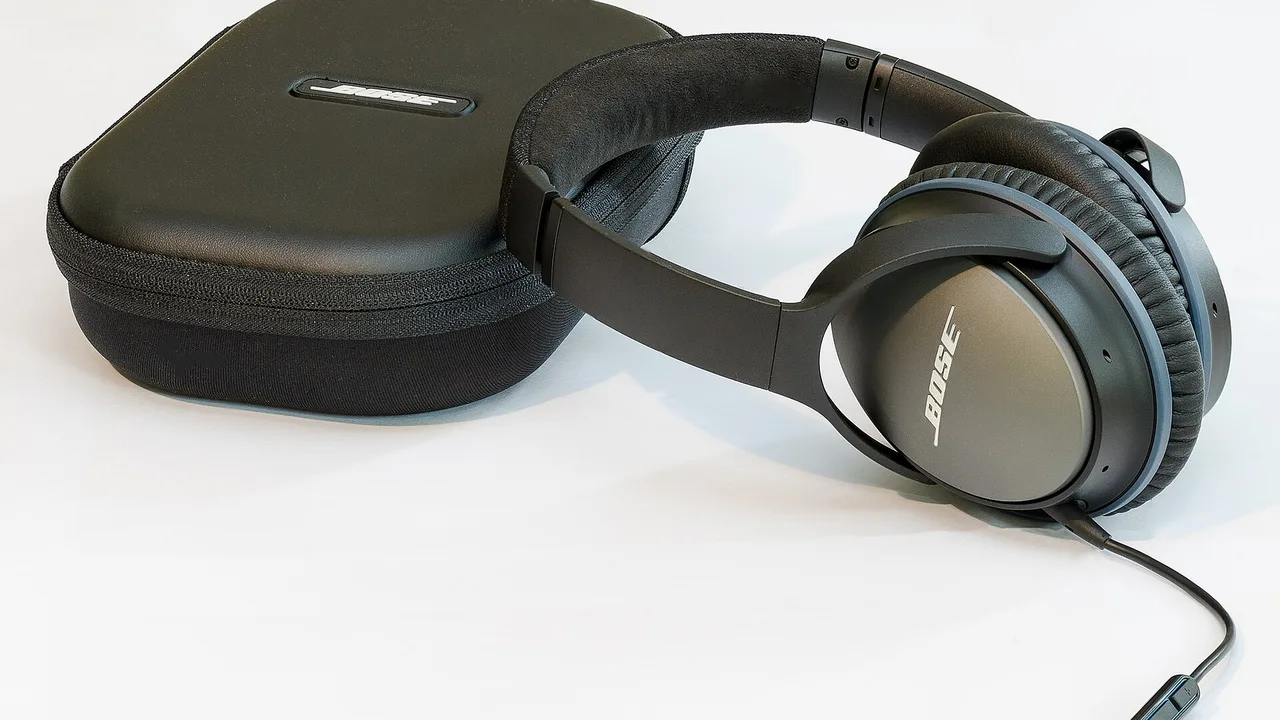
Fix Krira TV audio problems including no sound, quiet commentary, echo, and out-of-sync voices with a step-by-step check sequence for phones and TVs.
Picture without sound is one of streaming's strangest frustrations: the match plays, the crowd is visibly roaring, and your device stays silent. Audio problems feel mysterious, but they almost always come from a short list of ordinary causes. You can find the current download on the Krira TV official site page.
This guide works through those causes in the order worth testing, the thirty-second checks first, the deeper settings after, for phones, tablets, and televisions.
Change one thing at a time and test with live commentary after each step. Audio fixes are easy to overshoot when three settings change at once.
Press volume up while the stream plays, many phones separate media volume from ringtone volume, and media volume may be at zero while the phone still rings loudly. Then confirm the app or player is not muted; speaker icons inside players are easy to tap accidentally.
Check for a connected Bluetooth device. Sound may be playing perfectly, into headphones in another room or a car system the phone still remembers.
Play a video in another app. If sound works everywhere except Krira TV, the problem lives in the app or that stream; if nothing makes sound, the device or its output path is at fault.
This single test halves the troubleshooting tree. Write down which side you are on before changing any settings.
Occasionally a particular channel or feed carries low or missing audio while others are normal. Switch to a different event or channel to test; if only one feed is silent, the cause is at the source and patience, or an alternate feed, is the fix.
Commentary balance varies by production too. A quiet commentary under loud crowd noise is a mixing choice, not your device failing.
Close the app fully and reopen it; audio pipelines are stateful and a fresh start clears most glitches. If that fails, restart the device itself, unglamorous advice that resolves a surprising share of audio faults.
For televisions and sticks, power-cycle the device at the wall for thirty seconds rather than using the remote's sleep button, which often changes nothing internally.
Bluetooth headphones and speakers introduce pairing states, codecs, and delays. If sound vanishes with a Bluetooth device connected, disconnect it, confirm the built-in speakers work, then pair again from scratch.
Out-of-sync commentary over Bluetooth is usually delay, not damage. Some players and TVs offer audio delay adjustments; otherwise wired listening is the reliable answer for dialogue-critical viewing.
Check that no per-app volume or accessibility setting is redirecting sound. Mono audio, hearing enhancements, and left-right balance sliders occasionally sit in strange positions after system updates or curious exploration.
On Samsung and similar devices, separate app sound features can send one app's audio to a specific output. Confirm Krira TV is not assigned to a silent destination.
On TVs, confirm the input's audio format is set to a standard option such as PCM if sound disappears only on the streaming device. Exotic surround settings confuse some app-and-TV combinations.
Test the TV's own apps or channels. If they are silent too, the television or soundbar, not Krira TV, owns the problem.
Echo usually means two devices are playing the same stream slightly apart, a phone casting to a TV while its own speakers remain live, for example. Mute the source device when casting.
Within one device, echo can come from an audio enhancement or virtual surround feature doubling the signal. Disable enhancements to test.
App or system updates occasionally reset audio defaults. After any update, re-check media volume, Bluetooth pairings, and per-app assignments before assuming something broke.
Clearing the app cache is a safe middle step that removes stale temporary data without touching your setup. Reinstalling is the last resort, not the first.
Distortion at all volumes, one silent channel in every app, or sound that returns when the device is flexed or the headphone jack wiggles all point to physical faults.
Hardware problems need repair, not settings. Confirm with several apps and outputs so you can describe the fault precisely if you seek help.
Conclusion
Silent matches feel dramatic, but the cause is almost always mundane: a volume stream at zero, sound routed to a forgotten Bluetooth device, or a player muted by a stray tap.
Work the checks in order, test after each single change, and the commentary will be back before the next over, half, or quarter begins.
Download Krira TV APKLearn how to watch Krira TV on a PC or Windows laptop using an Android emulator, including setup steps, controls, display tips, and performance advice.
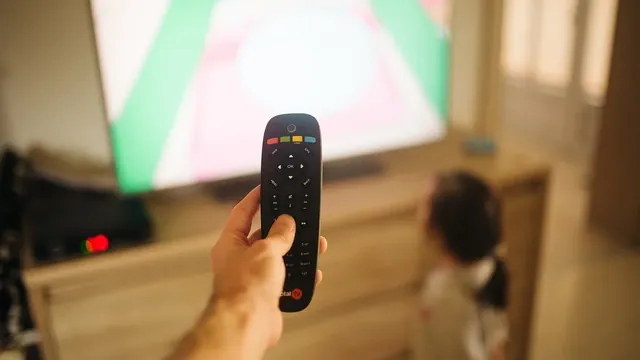
Set up Krira TV on Amazon Firestick and Fire TV devices with preparation steps, sideloading guidance, remote navigation tips, and storage advice.
Understand how much mobile data Krira TV streaming uses per match and per hour, what affects consumption, and practical ways to watch more while using less.