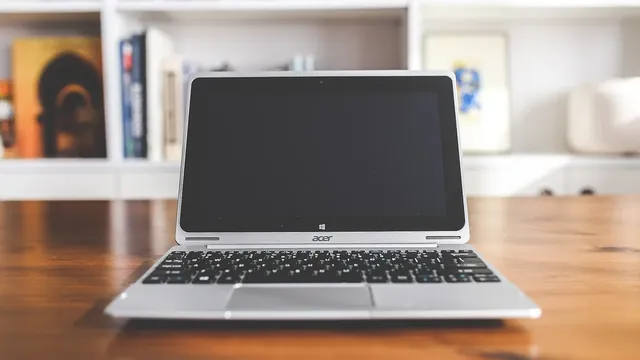
Krira TV on PC & Windows: Complete Setup Guide
Learn how to watch Krira TV on a PC or Windows laptop using an Android emulator, including setup steps, controls, display tips, and performance advice.

Resources

A friendly Krira TV beginner's guide covering first setup, finding a match, choosing quality, basic controls, and the habits that make streaming easy from day one.
Every experienced streamer was once a beginner staring at an unfamiliar home screen, unsure which tap leads to the match. The good news is that Krira TV's learning curve is short: one careful setup, one guided first match, and the app feels familiar within the hour. You can find the current download on the Krira TV official site page.
This guide assumes nothing. It walks from installation day to the small habits, quality choices, alerts, maintenance, that separate relaxed viewers from frustrated ones.
If the app is not installed yet, our installation guide handles that stage in full; this guide begins the moment the icon sits on your home screen.
Open the app on your home Wi-Fi and give the first load patience; initial setup can take longer than later starts. Browse the whole interface before choosing anything: note where live events, channels, and settings live.
Exploring without pressure teaches the layout faster than hunting for one match under time pressure. Do this tour on a quiet afternoon, not five minutes before a final.
Start from the live or sports area and look for an event currently in play, a live stream forgives beginner hesitation because there is always another moment coming. Favourite competitions, where the option exists, so future fixtures surface faster.
If nothing live suits you, browse the channel list to learn its organisation. Knowing whether channels group by sport, competition, or language pays off on every later visit.
Streaming controls are few: play and pause, volume, full screen, and the quality selector. Learn those four and you can watch anything. Rotation lock off, phone sideways, full screen on, that is the complete match posture.
The back button is your undo. Any screen you reach by tapping can be left the same way, so exploration is safe.
Leave quality on automatic for your first matches. The player will balance picture and stability while you learn everything else.
Once comfortable, experiment during a low-stakes match: try one level up and one down, and watch what changes on your screen and connection. Personal experience teaches quality faster than any chart.
Beginners benefit from a tiny routine: connect to the strongest Wi-Fi, close heavy background apps, open the stream ten minutes early, and keep the charger nearby for long events.
That is the entire checklist. It prevents nearly every common first-match failure, including the classic dead battery in extra time.
The most frequent mistake is changing many settings at once when something looks wrong, which makes the real cause impossible to find. The second is judging the app by one bad stream on a bad network day.
Give any problem a single change and a few minutes of testing. Calm method beats frantic tapping at every level of experience.
Install apps only from sources you trust, keep the device system updated, and be suspicious of any page that asks for unnecessary personal details around a simple stream.
Our full safety guide explains these habits properly; adopt its basics now, while your routines are forming, rather than retrofitting them later.
After your first matches, add fixtures to a calendar or set alerts for your team so viewing becomes a rhythm rather than a scramble. Our alerts guide shows a light system that takes minutes to build.
Choose a couple of competitions to follow properly instead of skimming everything; attachment is what turns streams into seasons.
Freezing, silence, and app closures all have ordinary causes and ordinary fixes. Restart the stream, then the app, then the device, in that order, before touching any deeper setting.
Keep our not-working and buffering guides bookmarked. Between them they answer the overwhelming majority of problems a beginner will ever meet.
Within a few weeks the routine disappears into habit: the right network, the early open, the comfortable quality setting. That invisibility is the sign the technology is working.
From there, the interesting choices are about sport, not software, which leagues to follow, which screens to watch on, and whose house hosts the final.
Conclusion
Beginners do not need to master Krira TV; they need one calm setup, four controls, and a five-minute pre-match routine. Everything else is refinement that arrives naturally with use.
Watch your first match the unhurried way this guide describes, and you will start your second as something else entirely, a regular viewer.
Download Krira TV APKLearn how to watch Krira TV on a PC or Windows laptop using an Android emulator, including setup steps, controls, display tips, and performance advice.
Set up Krira TV on Amazon Firestick and Fire TV devices with preparation steps, sideloading guidance, remote navigation tips, and storage advice.

Understand how much mobile data Krira TV streaming uses per match and per hour, what affects consumption, and practical ways to watch more while using less.